As a Material Advantage Member, you receive membership benefits from ASM International. While many of your account details are automatically imported, you will need to apply your Material Advantage membership to your ASM account. Learn how in five steps!
If you encounter challenges at any point along the way, please reach out to our Member Service Center – to help them process your request faster, please include your full name, the date you joined Material Advantage, and your Material Advantage/TMS ID (a six-digit number unique to you issued upon joining).
Step 1 – ASM Password Creation
(If you have successfully logged into the ASM site previously, you can skip to Step 2 below)
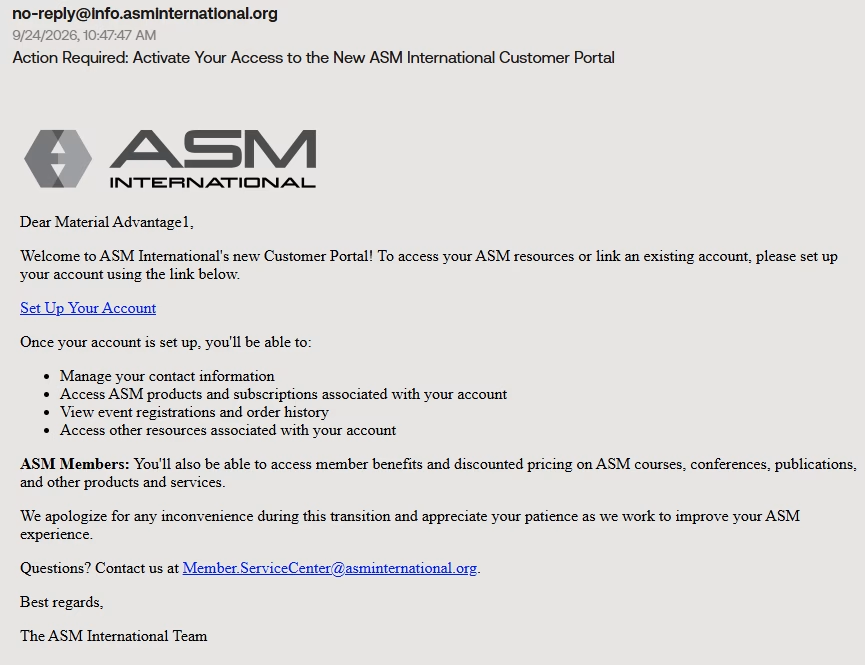
When your details are first added to our system from Material Advantage, you will receive an automated email from [email protected] with subject Action Required: Activate Your Access to the New ASM International Customer Portal (image 1 below) with instructions on how you can set your password and login. You may want to check your spam folder if not in your primary inbox. These emails are sent within 48 hours of your Material Advantage membership purchase.
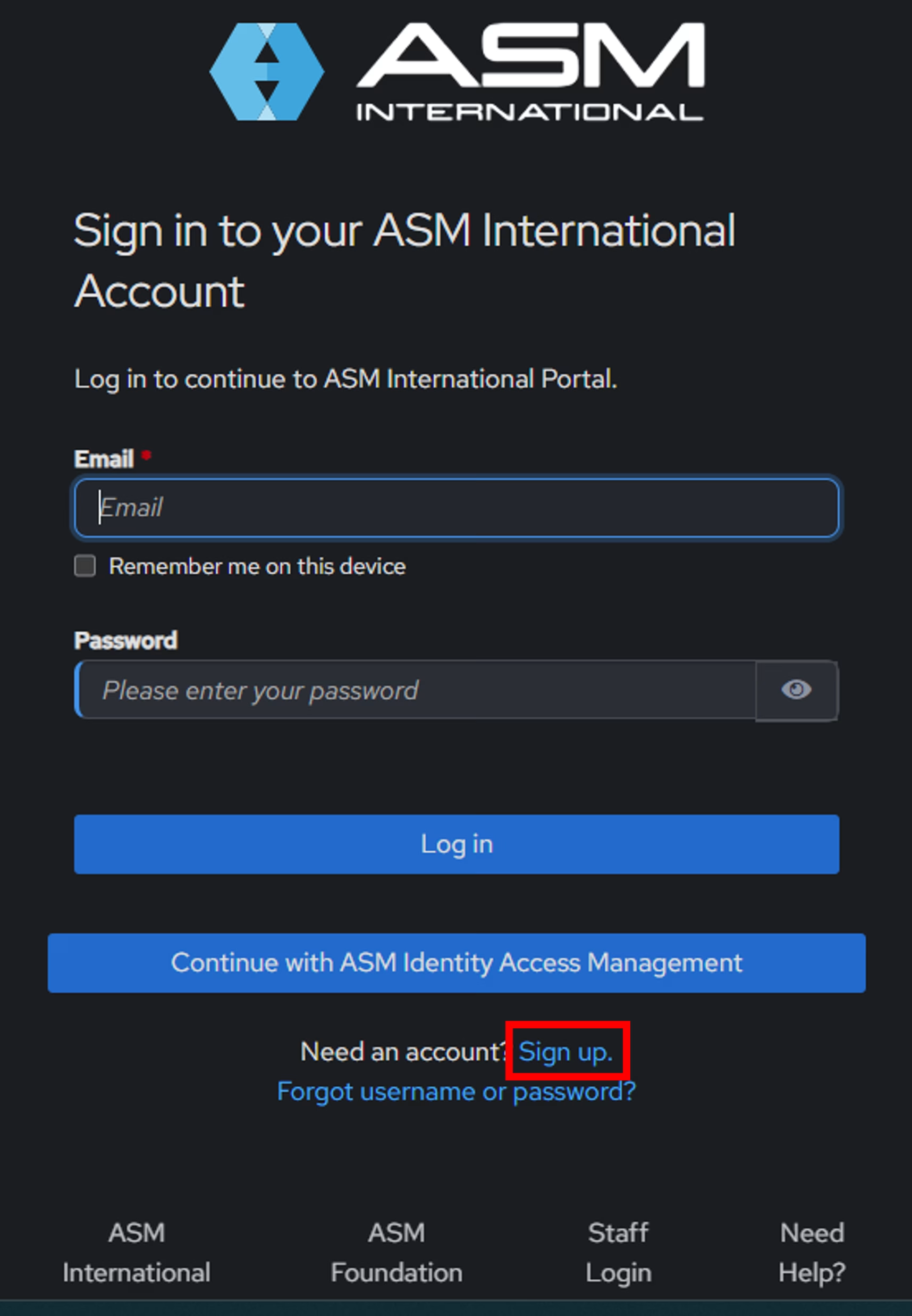
Don’t have the email after 48 hours? No worries! You can still activate your account. Simply visit www.asminternational.org, click MyASM at the top right of the page (image 2 below), and then click Sign Up (image 3 below). Note that you will need the exact First Name, Last Name, and Email Address that you used when you registered for Material Advantage. Follow the prompts to set your password and login.
Image 1 – Welcome Email
Click Image To Enlarge
Image 2 – Webpage Top Menu View
Click Image To Enlarge
Image 3 – Sign Up Portal
Click Image To Enlarge
Step 2 – Accessing The Join Process
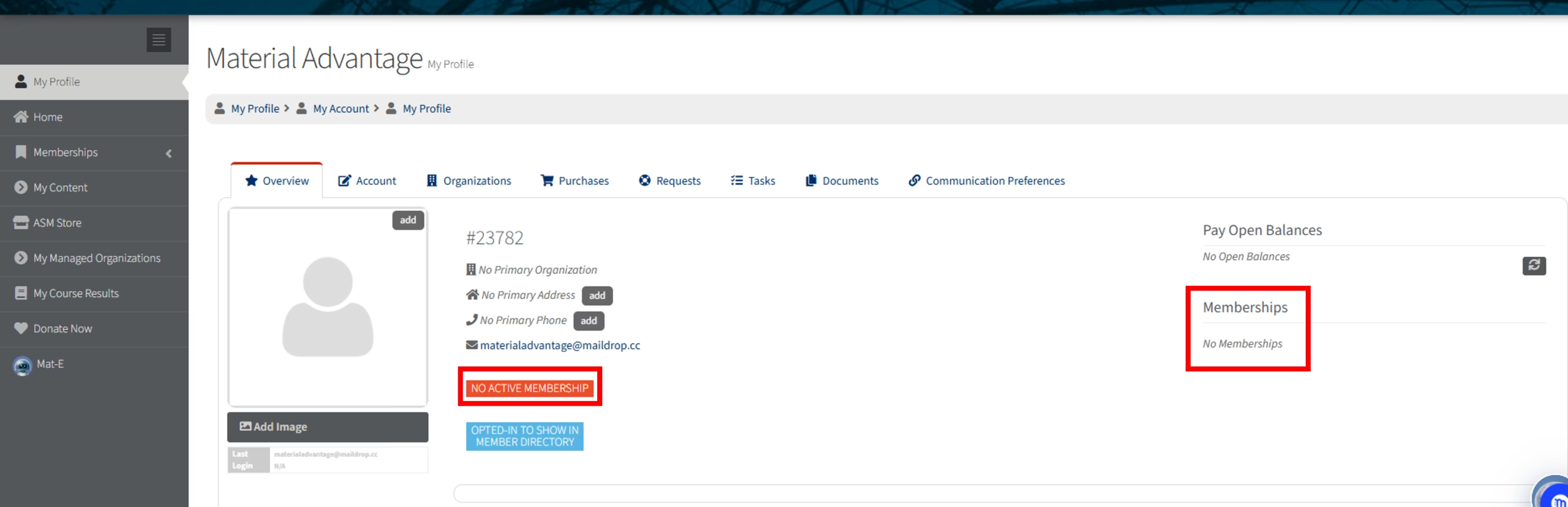
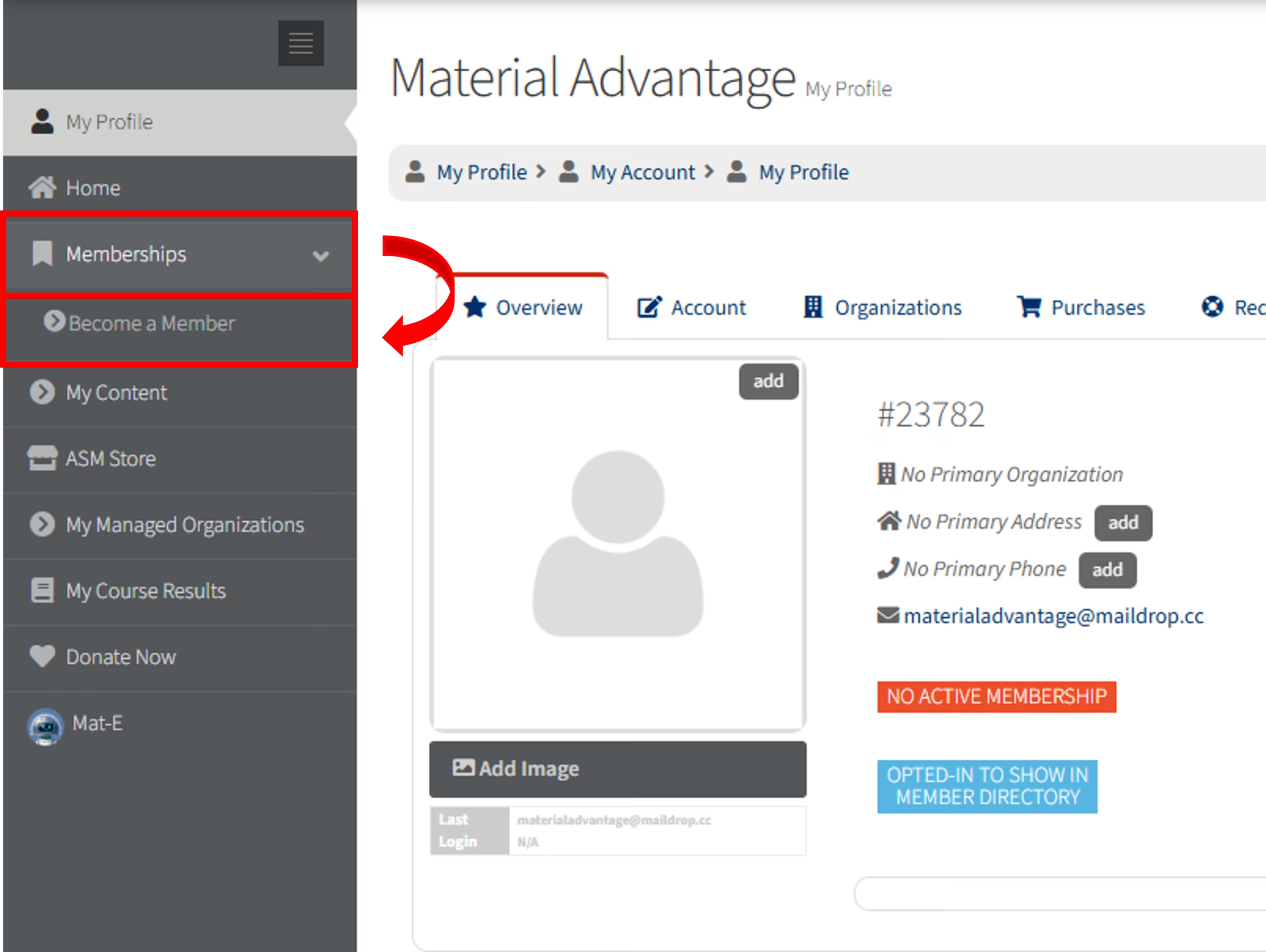
If not already, log into the ASM website by clicking the MyASM at the top right of the page (image 1 below). Upon logging in, you will be directed to your profile (image 2 below). You’ll notice the lack of memberships associated with your account. Navigate to the left navigation menu, click Memberships then Become a Member (image 3 below).
Image 1 – Webpage Top Menu View
Click Image To Enlarge
Image 2 – Profile View
Click Image To Enlarge
Image 3 – Left Menu Options
Click Image To Enlarge
Step 3 – Adding Your Base Membership
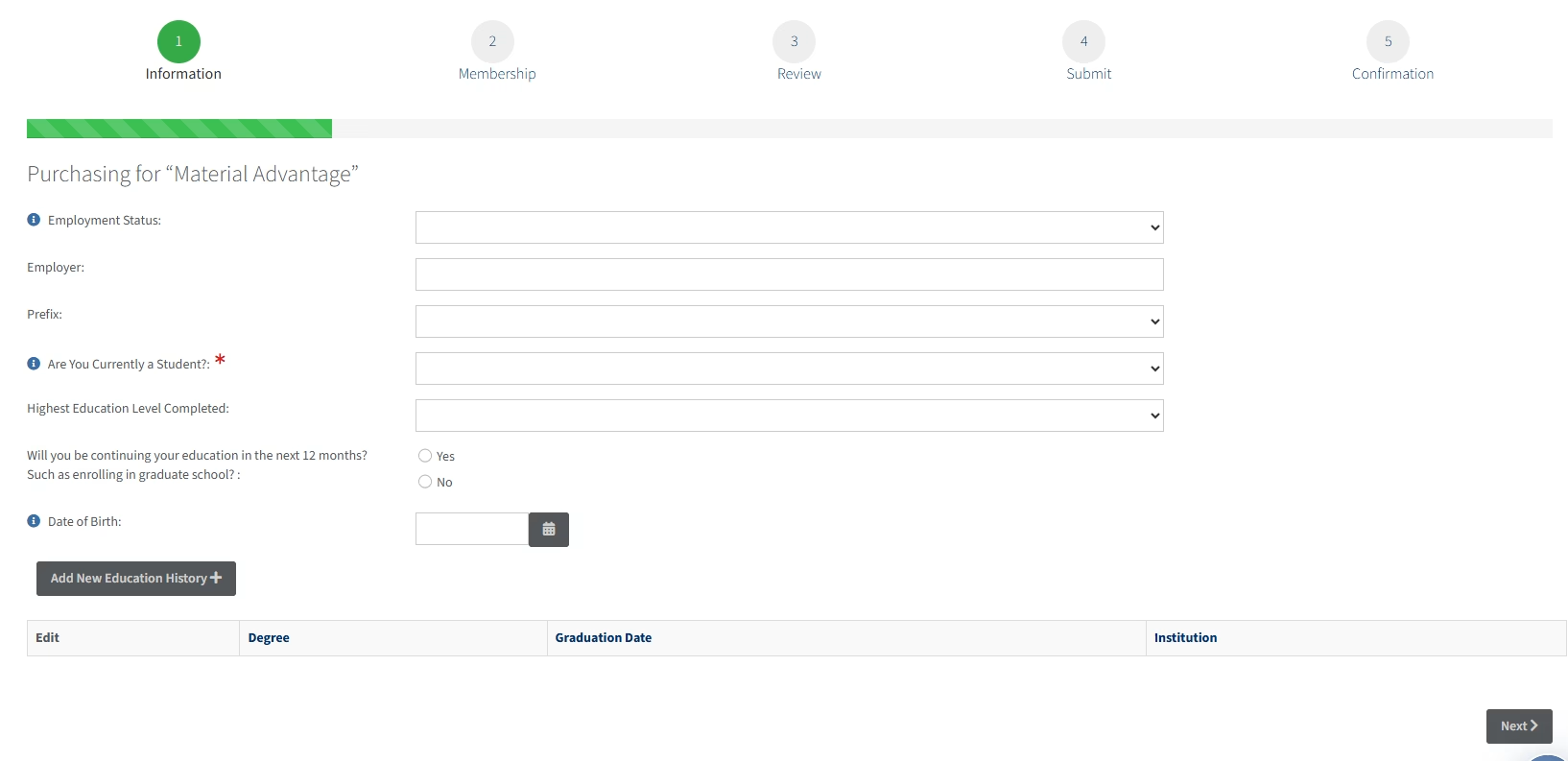
After clicking Become a Member, you’ll be directed to the first screen in the membership join process (image 1 below). Many of your details may have already been imported into these fields. If not, please proceed to fill them all out or edit any details that need to be corrected. Once finished, click Next.
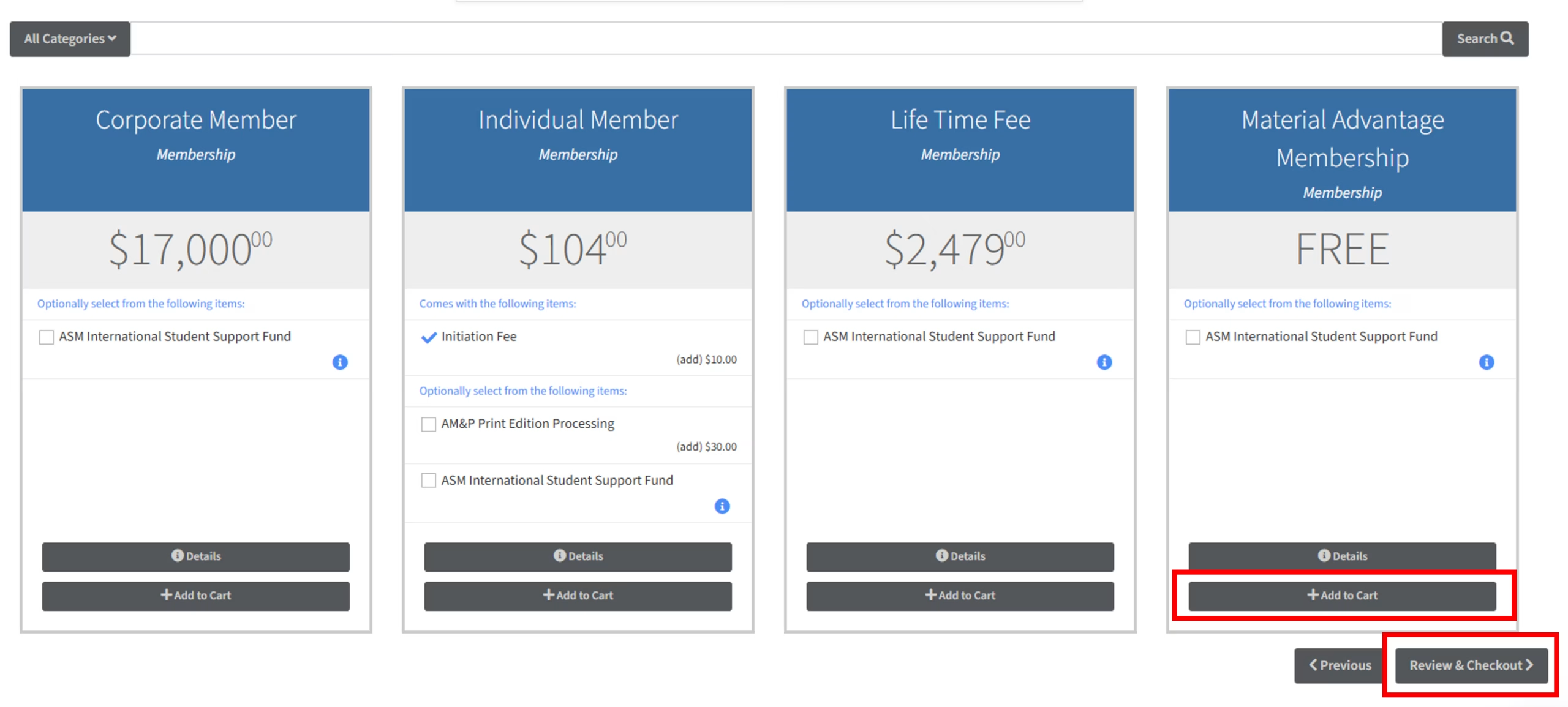
A few different membership options will show. Add the Material Advantage Membership to your cart. It should display as free. Click Review & Checkout (image 2 below).
Image 1 – Join Process, First Page
Click Image To Enlarge
Image 2 – Adding Base Membership To Cart
Click Image To Enlarge
Step 4 – Adding Additional Memberships
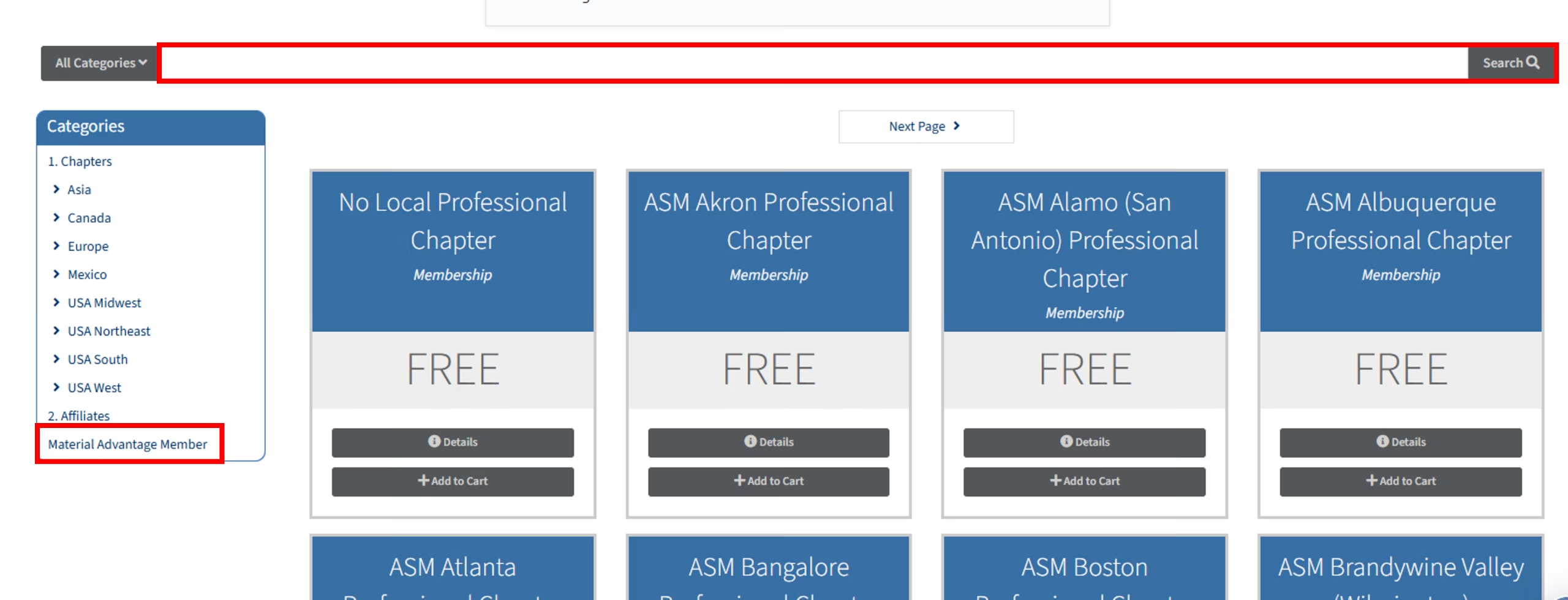
On the next screen, you’ll be able to select your local Chapter. Using the left menu, navigate to the Material Advantage Member category (image 1 below). A full listing of all active Material Advantage Chapters will populate. They are organized alphabetically by location then name. You can sort through the list to find your university or search by keyword in the top search bar (image 1 below). You can also see a full listing of all MA Chapters by visiting this page. Once you find your university’s Chapter, you can add it to your cart then Review & Checkout. If your university is not listed, you can select No Material Advantage Student Chapter (which is the last Chapter option, or you can use the search bar to find it to add to your cart). Note that ASM requires a chapter option be selected and only one selection can be added during this step.
After you have added your Material Advantage Chapter to your cart and then proceeded to checkout, you will be directed to a screen with additional membership options. You can add an ASM Professional Chapter at this time. You may wish to add one that is near your university or your home. If you do not have a nearby Professional Chapter, select No Local Professional Chapter to be added to your cart.
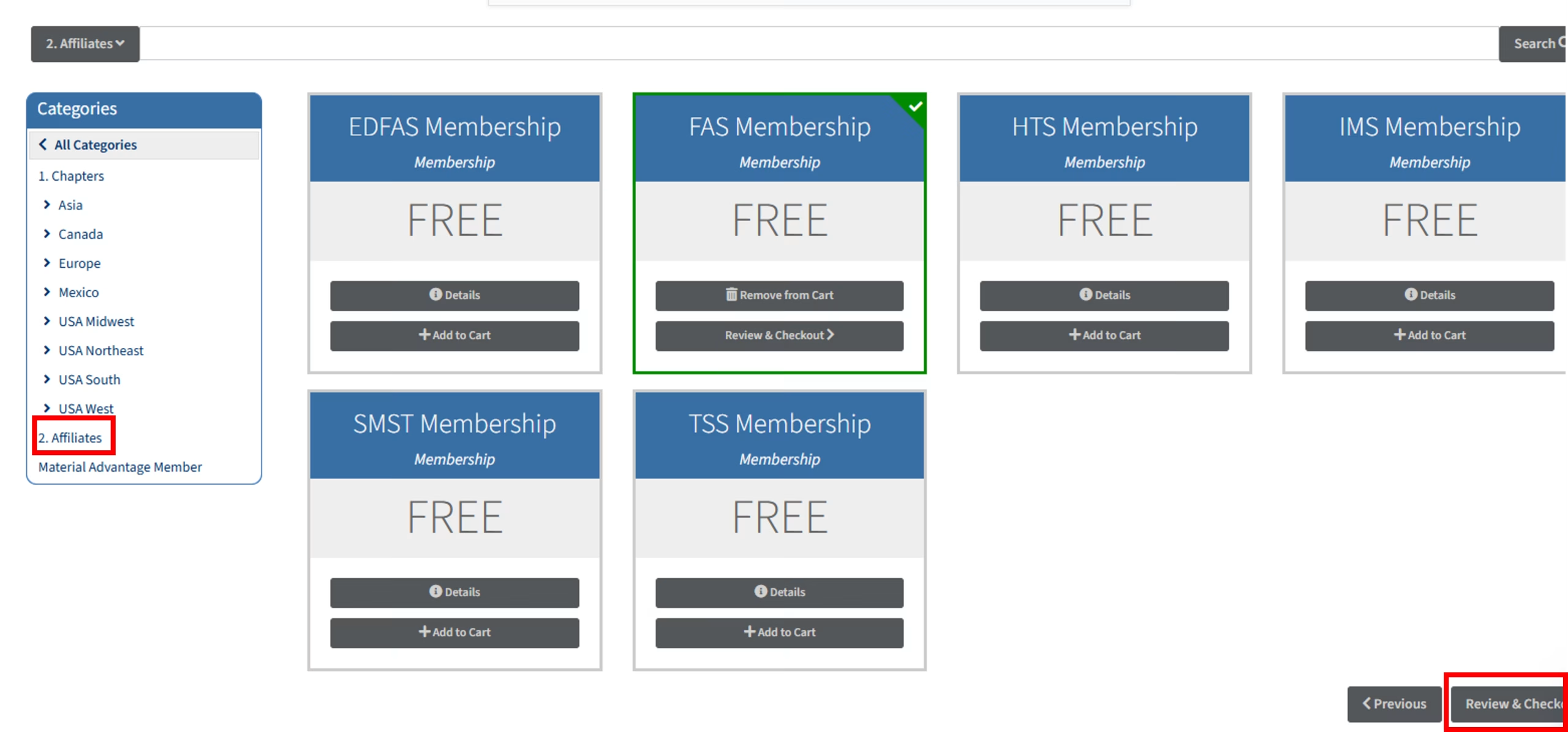
From the same screen where you added your Professional Chapter, you may also add an ASM Affiliate Membership if you desire. These societies are free of charge for Material Advantage students, and you can learn more about them by clicking here. You can use the left menu to select the Affiliate category (image 2 below) to have them populate. Add any that you desire to your cart.
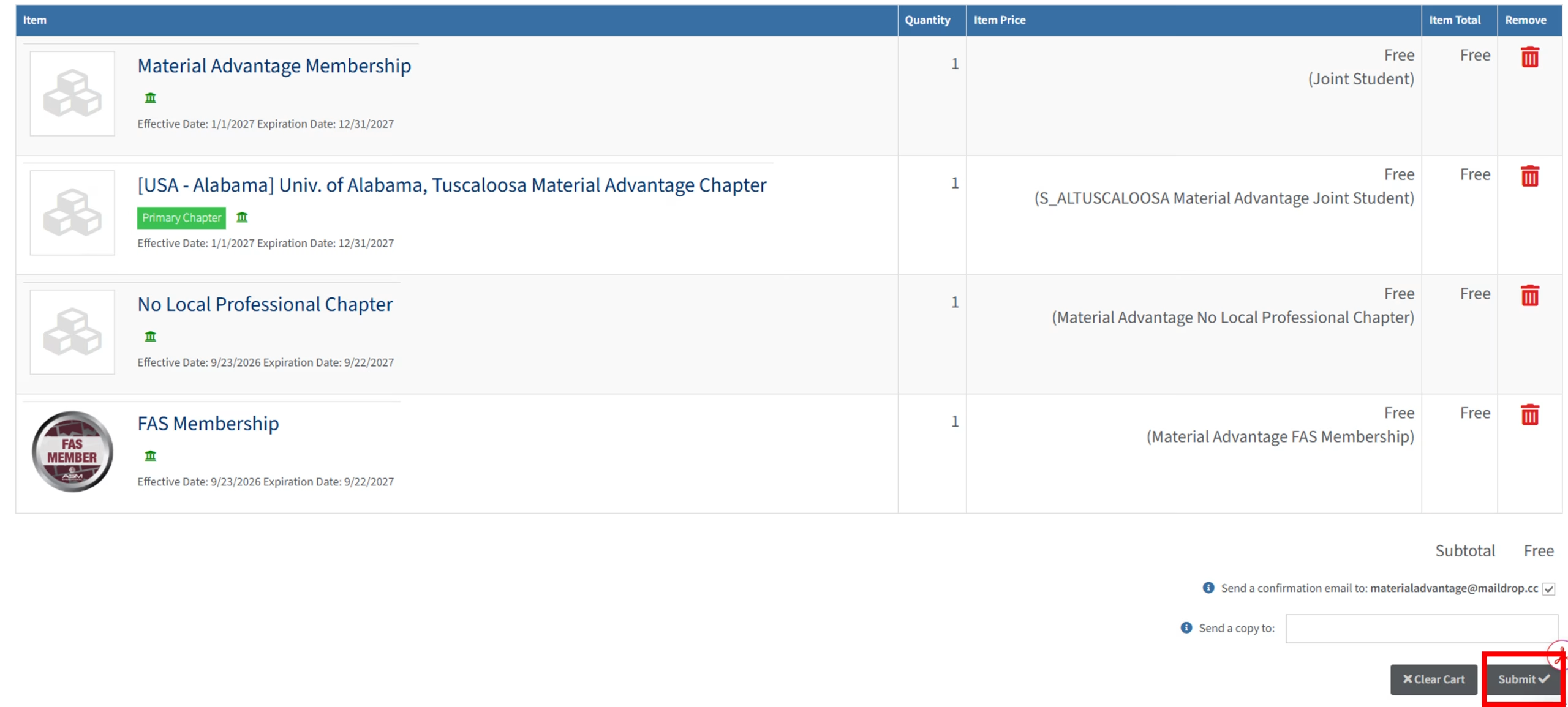
After selecting your Material Advantage Chapter, your ASM Local Professional Chapter, and any optional Affiliates, select Review & Checkout (image 2 below). You will be directed to your cart confirmation screen. If all looks correct, click Submit (image 3 below).
Image 1 – Material Advantage Chapter
Click Image To Enlarge
Image 2 – Affiliate View
Click Image To Enlarge
Image 3 – Cart Confirmation
Click Image To Enlarge
Step 5 – Final Membership Check
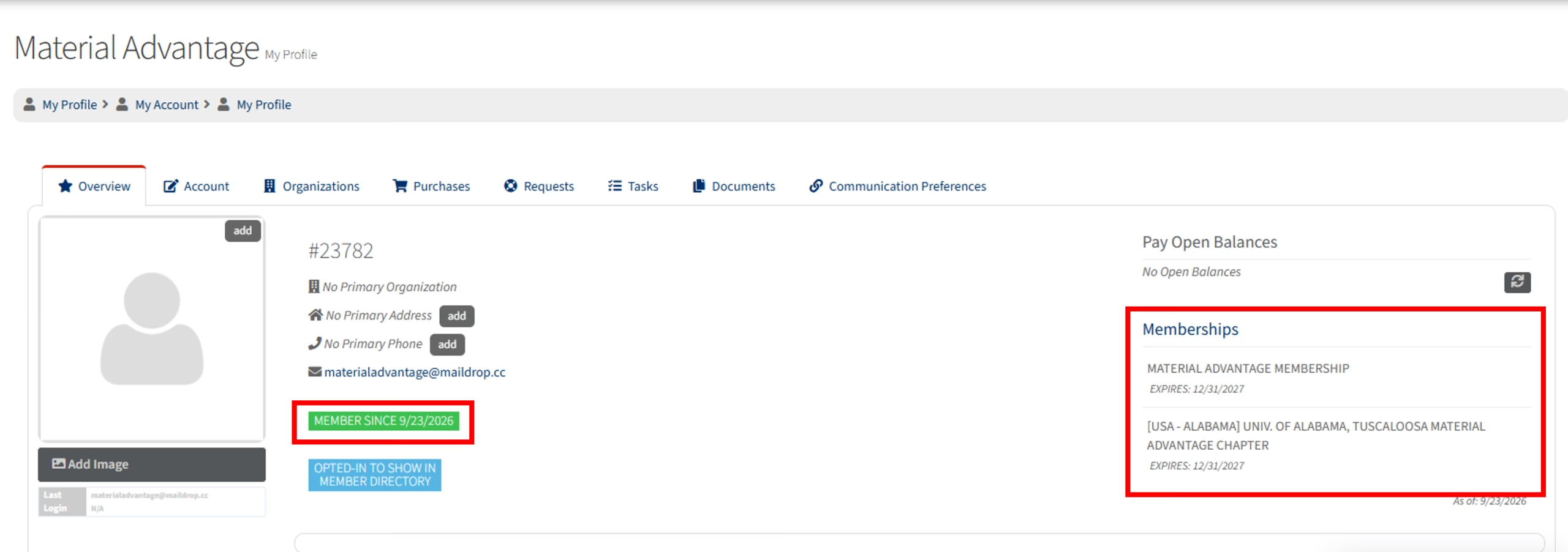
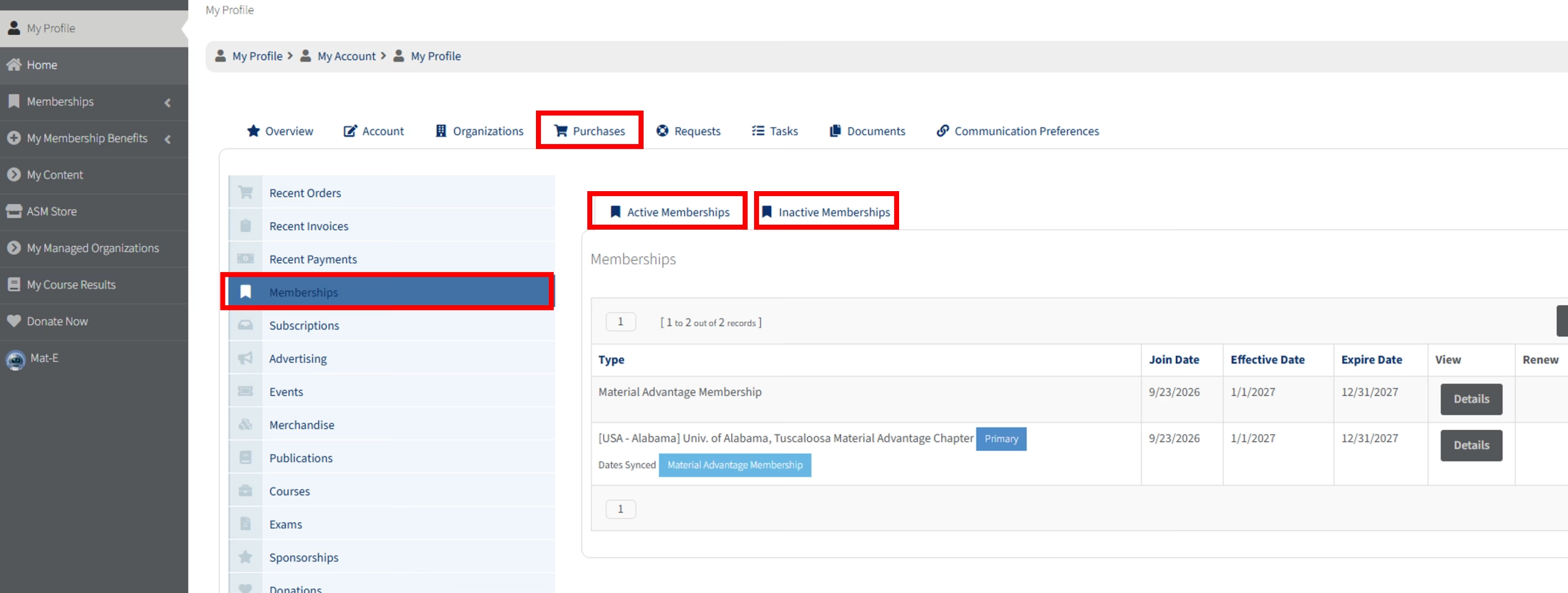
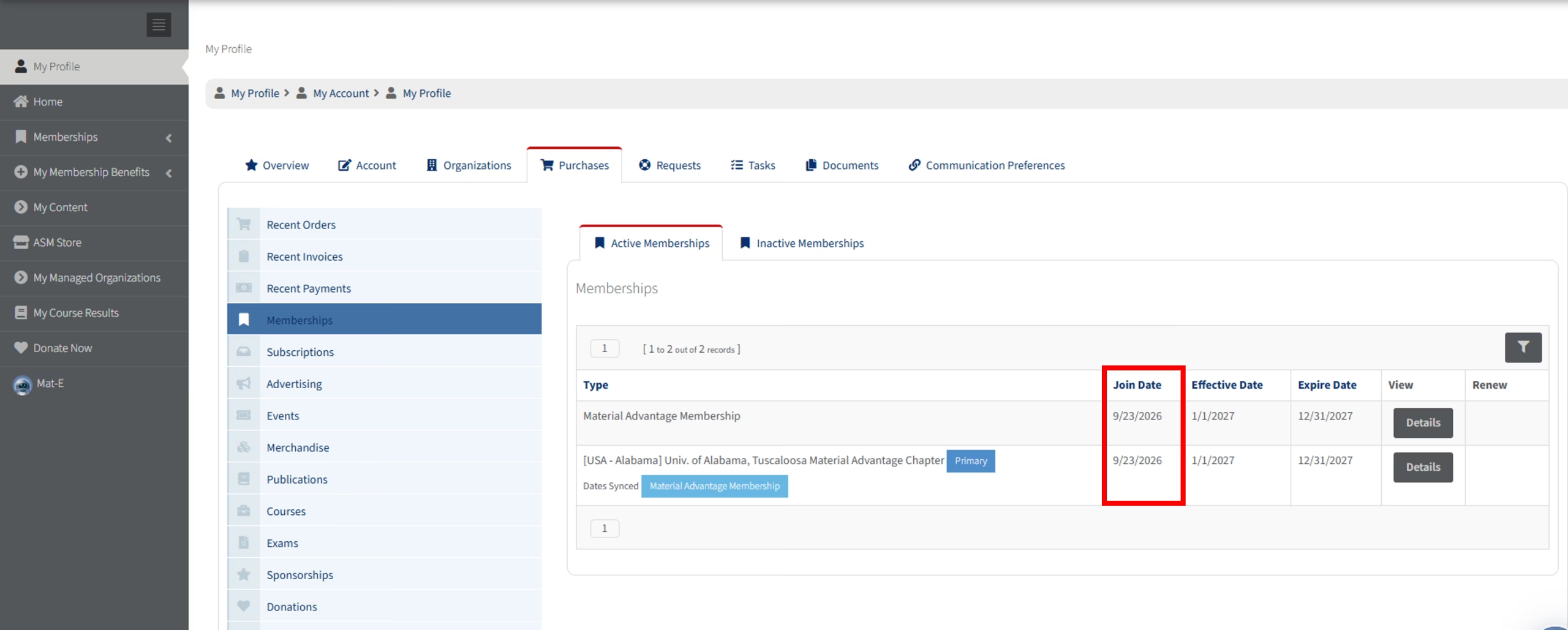
Membership should now show on your profile (image 1). Occasionally, ASM’s system may need to refresh before displaying. If you do not see a specific membership that you purchased, navigate to Purchases > Memberships > Active Memberships (image 2). You can also view Inactive Memberships, as certain memberships may have a delayed Effective Date (this can occur based on when you joined Material Advantage to ensure you are receiving the appropriate duration of membership). As long as your Join Date is correct, then you will appear on ASM’s rosters, etc. for those memberships.
Depending on when you activated your ASM membership vs. when you first joined Material Advantage, you may want ASM to update your Join Date (image 3) to match. Simply fill out our MA Join Date Update Form to have us review your account – requests are generally processed within two/three business days and will automatically display on your profile.